
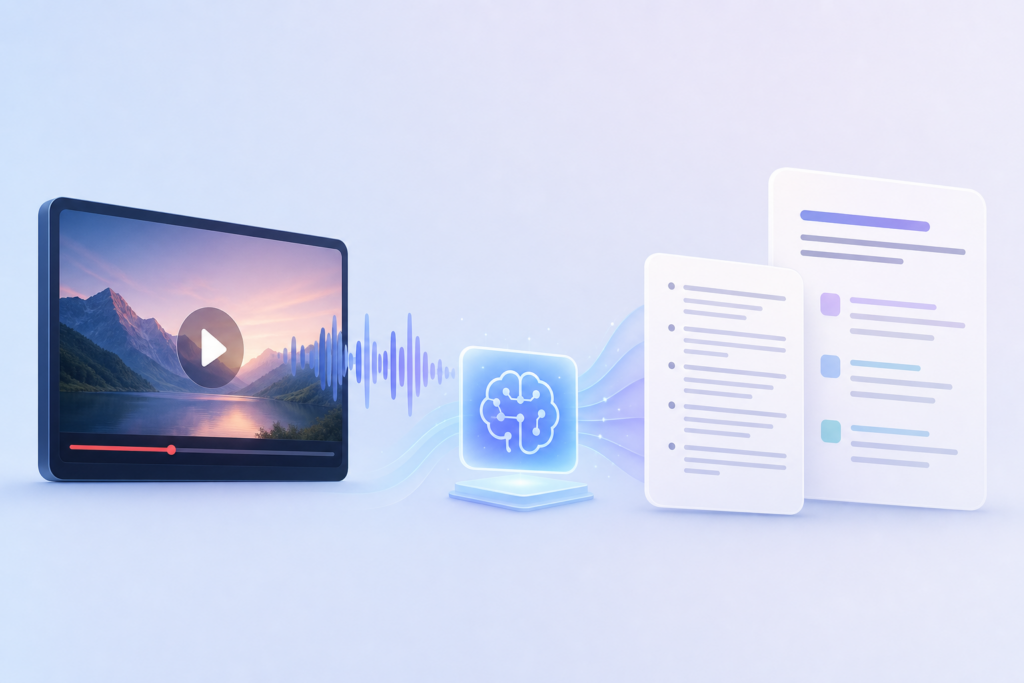
Whether you’re watching a webinar, reviewing a lecture, or catching up on industry videos, sitting through hour-long recordings wastes time. AI can now transcribe video content and distill it into quick summaries, letting you extract key points in minutes instead of hours.
Here’s how to use AI tools to transcribe and summarize videos efficiently, with step-by-step instructions for different use cases.
Why Transcribe and Summarize Videos with AI?
Video is time-consuming. A 45-minute webinar might contain only 5 minutes of information relevant to you. AI transcription and summarization help you:
- Quickly scan content for key takeaways without watching the entire video
- Search transcripts for specific topics, quotes, or timestamps
- Repurpose video content into blog posts, social media updates, or meeting notes
- Make video content accessible for team members who prefer reading
The process takes just a few clicks, and most tools work with YouTube links, uploaded files, or recorded meetings.
Method 1: Transcribe YouTube Videos with ChatGPT
ChatGPT Plus, Team, and Enterprise subscribers can transcribe and summarize YouTube videos directly using the web browsing feature.
How to do it:
- Copy the URL of any public YouTube video
- Paste it into ChatGPT with a prompt like: “Transcribe this video and give me a bullet-point summary of the key points”
- ChatGPT will access the video, pull the transcript (if available), and generate a summary in seconds
- Ask follow-up questions like “What did they say about [topic]?” to dig deeper
This method works best for videos that already have captions. For videos without captions, you’ll need a dedicated transcription tool.
Method 2: Use Otter.ai for Meeting and Webinar Recordings
Otter.ai is purpose-built for transcription and works especially well for Zoom meetings, Google Meet calls, and uploaded video files.
How to do it:
- Connect Otter to your calendar to auto-join and record meetings, or upload a video file (MP4, MOV, etc.)
- Otter transcribes in real time and identifies different speakers
- Once transcription is complete, click “Summary” to generate an AI overview with action items and key topics
- Export the transcript as a text file or share a link with your team
The free plan allows 300 monthly transcription minutes. Paid plans start at $16.99/month for unlimited transcription and advanced summaries.
Method 3: Summarize Any Video with Claude or Gemini
If you have a transcript already (from YouTube’s auto-captions, Otter, or another tool), you can paste it into Claude or Google Gemini for flexible summarization.
How to do it:
- Download the transcript from YouTube (click the three dots below a video, select “Show transcript,” copy the text)
- Paste it into Claude or Gemini with a prompt like: “Summarize this video transcript in 5 bullet points” or “Extract all actionable advice from this transcript”
- Customize the output: ask for a one-paragraph overview, a detailed outline, or quotes on a specific topic
Claude handles very long transcripts especially well thanks to its 200,000-token context window, making it ideal for multi-hour recordings or conference sessions.
Method 4: Use Tactiq for Browser-Based Transcription
Tactiq is a free Chrome extension that transcribes and summarizes Google Meet, Zoom, and Microsoft Teams meetings directly in your browser.
How to do it:
- Install the Tactiq extension from the Chrome Web Store
- Join a meeting — Tactiq automatically starts transcribing
- After the meeting, click the Tactiq icon to view the transcript and generate an AI summary using built-in templates (meeting notes, action items, etc.)
- Copy, export, or share the summary with one click
The free version offers unlimited transcription with limited AI summaries. The Pro plan ($12/month) unlocks unlimited summaries and integrations with Notion, Google Docs, and Slack.
Quick Tips for Better Results
To get the most useful transcripts and summaries, keep these tips in mind:
- Specify your goal in the prompt: “Summarize this for a marketing team” yields different results than “Summarize this for a technical audience”
- Ask for timestamps if you want to jump back to specific sections in the original video
- For long videos, ask the AI to break the summary into sections or chapters
- Use follow-up prompts to refine the output: “Make this shorter,” “Focus only on the Q&A section,” or “Turn this into a blog outline”
Start Saving Hours Every Week
Transcribing and summarizing videos with AI transforms how you consume content. Instead of passively watching, you can actively extract exactly what you need in a fraction of the time.
Pick one method from this guide and try it on your next webinar, training video, or recorded meeting. You’ll wonder how you ever managed without it.
Want one practical AI tip like this in your inbox every day? Subscribe to the One Two Three AI newsletter and learn how to use AI tools that actually make your work easier.