
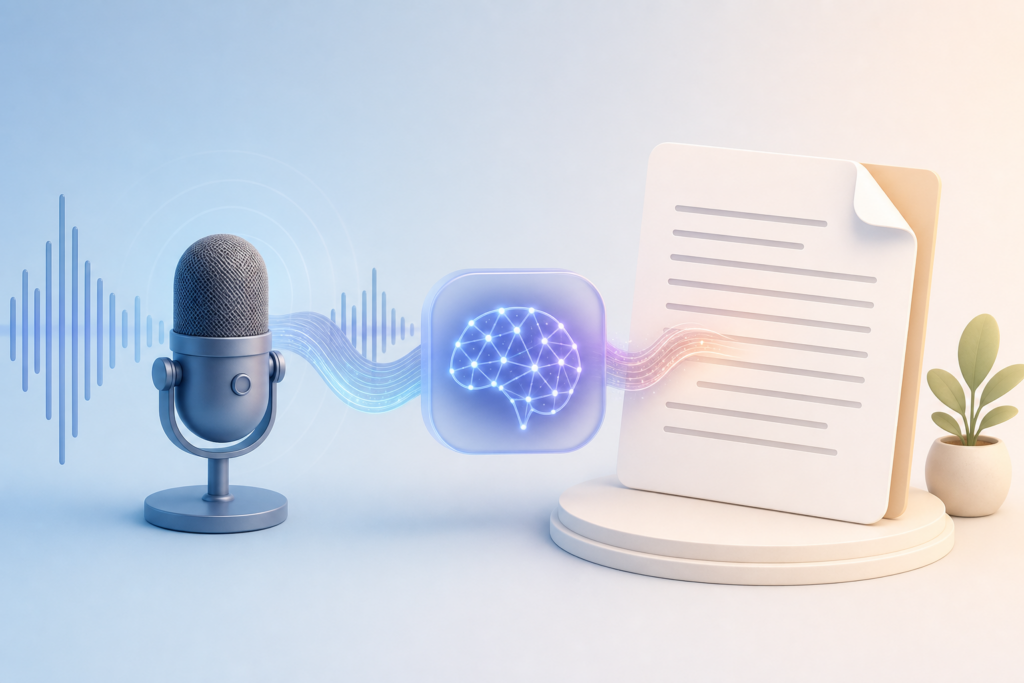
If you’ve ever recorded a voice memo full of brilliant ideas only to dread the thought of transcribing it later, you’re not alone. Voice notes are convenient for capturing thoughts on the go, but turning raw audio into something useful takes time—unless you use AI to do the heavy lifting.
Modern AI tools can now transcribe your audio accurately and then polish that transcript into clear, organized text. Here’s how to build a workflow that works.
Step 1: Choose Your Transcription Tool
Several AI tools can transcribe audio quickly and accurately. Here are three solid options:
- ChatGPT (Plus or Pro): Upload audio files directly (up to 25 MB) and ask ChatGPT to transcribe and format the content. Works with MP3, WAV, and M4A files.
- Claude: Similar to ChatGPT—upload your audio file and request a transcript. Claude handles files up to 30 MB and excels at organizing messy transcripts.
- Otter.ai: Purpose-built for transcription with a free tier. Records or uploads audio, then transcribes in real time. Great for meetings or longer recordings.
For quick voice memos under 10 minutes, ChatGPT or Claude work perfectly. For longer recordings or real-time transcription, Otter is your best bet.
Step 2: Upload and Transcribe Your Audio
Let’s walk through the process using ChatGPT as an example:
- Open ChatGPT and start a new conversation.
- Click the attachment icon (paperclip) and upload your audio file.
- Use a prompt like: “Transcribe this audio and organize the main points into clear paragraphs.”
Within seconds, you’ll have a full transcript. The AI handles filler words, pauses, and unclear speech surprisingly well, though it’s not perfect with heavy accents or background noise.
If you’re using Claude, the process is identical—upload the file and prompt for a transcript. Otter automatically transcribes as soon as you upload or finish recording.
Step 3: Polish the Transcript with AI Editing
Raw transcripts are useful, but they’re rarely ready to use. This is where AI editing shines. After you have your transcript, ask the AI to refine it:
- “Clean up this transcript by removing filler words and organizing it into clear sections.”
- “Turn this rambling voice memo into a structured outline with bullet points.”
- “Rewrite this transcript as a professional email summarizing the key points.”
- “Extract action items from this recording and list them clearly.”
The AI will reformat your transcript into whatever format you need—meeting notes, blog draft, task list, email, or summary. You can also ask it to change the tone (more formal, more casual) or length (shorter summary, expanded explanation).
Pro Tips for Better Results
Here are a few ways to get cleaner transcripts and better output:
- Record in a quiet environment: Background noise degrades transcription accuracy. Use headphones with a mic if possible.
- Speak clearly and pause between ideas: AI handles natural speech well, but clear breaks help it organize your thoughts better.
- Use timestamps for long recordings: Ask the AI to include timestamps in the transcript so you can reference specific moments.
- Combine transcription and summarization: Instead of asking for just a transcript, prompt the AI to “transcribe and summarize the key points” in one step.
- Save your workflow as a custom instruction: If you do this often, save your preferred format as a custom instruction in ChatGPT or a saved prompt in Claude.
Real-World Use Cases
This workflow isn’t just for personal voice memos. Here’s how people are using it:
- Content creators: Record rough video script ideas while walking, then turn them into polished scripts.
- Writers: Brainstorm articles or chapters out loud, then get a clean outline to work from.
- Consultants and freelancers: Record client calls or project notes, then generate summaries and action items automatically.
- Students and researchers: Transcribe lecture recordings or interview audio, then extract key points and quotes.
The key benefit is speed. What used to take 30 minutes of manual transcription and editing now takes 2 minutes and a few good prompts.
What to Watch Out For
AI transcription is excellent, but not flawless. Always review the output, especially for:
- Technical terms, names, or industry jargon that the AI might mishear
- Numbers, dates, or prices that need to be accurate
- Context the AI might misinterpret without visual cues
Think of AI as your first-pass editor, not your final copy. It handles 90% of the grunt work, but you still need to review and refine.
Once you build this workflow into your routine, you’ll never dread voice memos again. Instead of letting ideas sit unheard on your phone, you’ll have polished, usable text in minutes.
Want more practical AI tips like this? Subscribe to the One Two Three AI newsletter and get one useful AI idea delivered to your inbox every day.